How it works
A technical (but friendly) explanation of how this app extracts dominant colours.
Overview
This web app finds a small set of representative colours from your image using K-Means clustering in HSV colour space. In Auto (Elbow) mode, the number of colour clusters is chosen automatically using an elbow/knee detection method. Masks are generated only when you click Show masks.
Privacy
Your image is processed in memory to compute colours and (optionally) masks. The service is designed to not store uploaded images or build a gallery.
Step-by-step pipeline
- Resize: The image is resized to a fixed width (e.g. 400px) to reduce computation while keeping aspect ratio.
- Convert BGR → HSV: HSV separates colour information (Hue) from intensity (Value), which often helps clustering.
- Flatten pixels: The image becomes a long list of pixels (each pixel is a 3D point: H, S, V).
- Choose k:
- Auto (Elbow): run K-Means with k=2..10, measure SSE (inertia), then pick the “knee” point (KneeLocator).
- Manual: you specify k (2–10).
- K-Means clustering: assign each pixel to one of k clusters. Each cluster centre is treated as a dominant colour.
- Ratios: compute the fraction of pixels belonging to each cluster (percentage in the image).
- Masks (optional): if you click Show masks, the app generates k partition images. Each partition keeps pixels of one cluster and paints other areas white. (To keep the response lighter, mask images are returned at a smaller width.)
What is K-Means?
K-Means is an algorithm that groups points into k clusters by repeatedly: (1) assigning each point to the nearest cluster centre, and (2) updating each centre to the average of its assigned points. Here, each pixel is a point in HSV space.
What is the Elbow method?
As k increases, the clustering error (SSE / inertia) decreases. The elbow method chooses k at the point where additional clusters produce diminishing improvement. We detect that “knee” automatically (KneeLocator).
Example flow (using Elbow method)
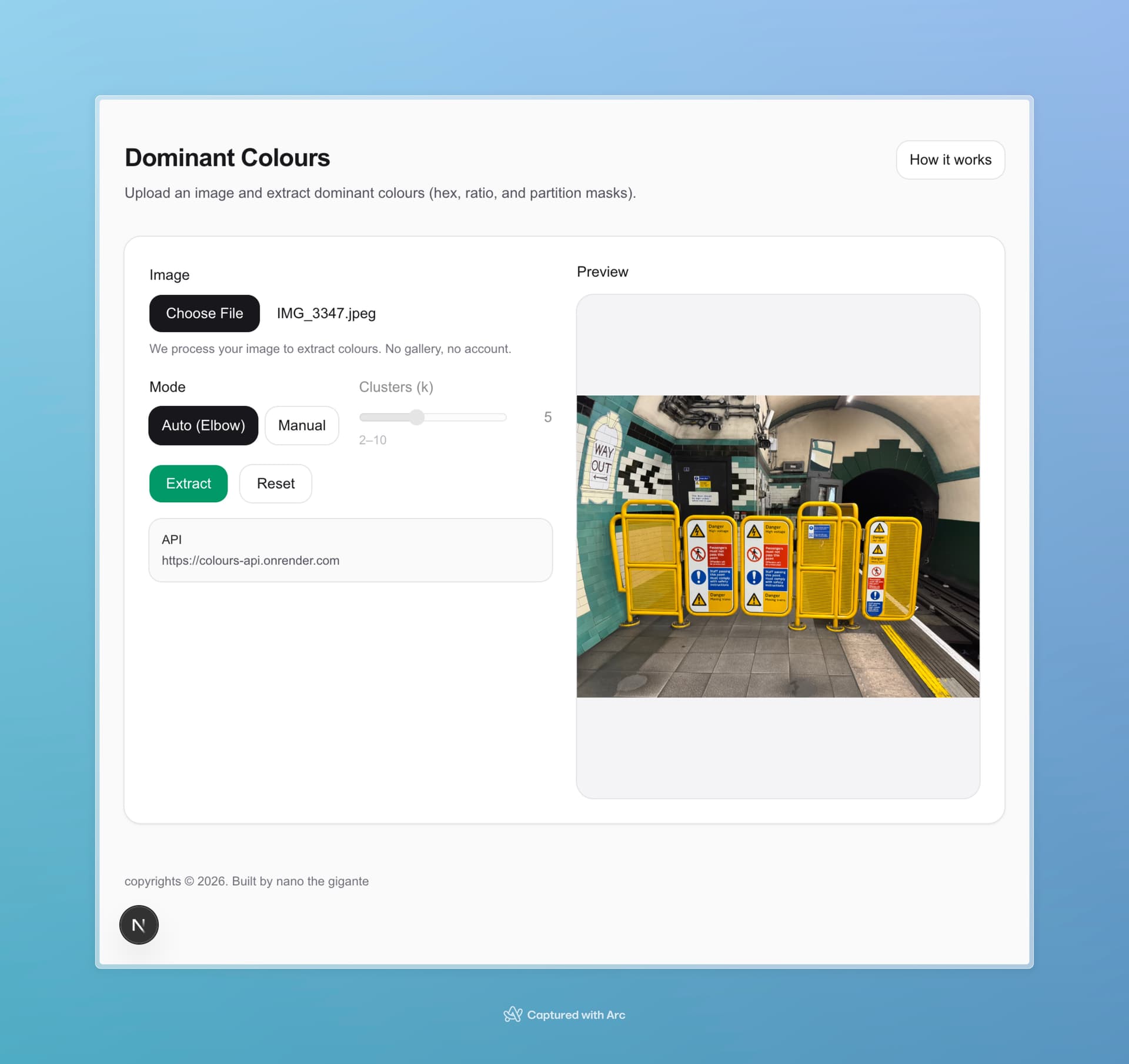
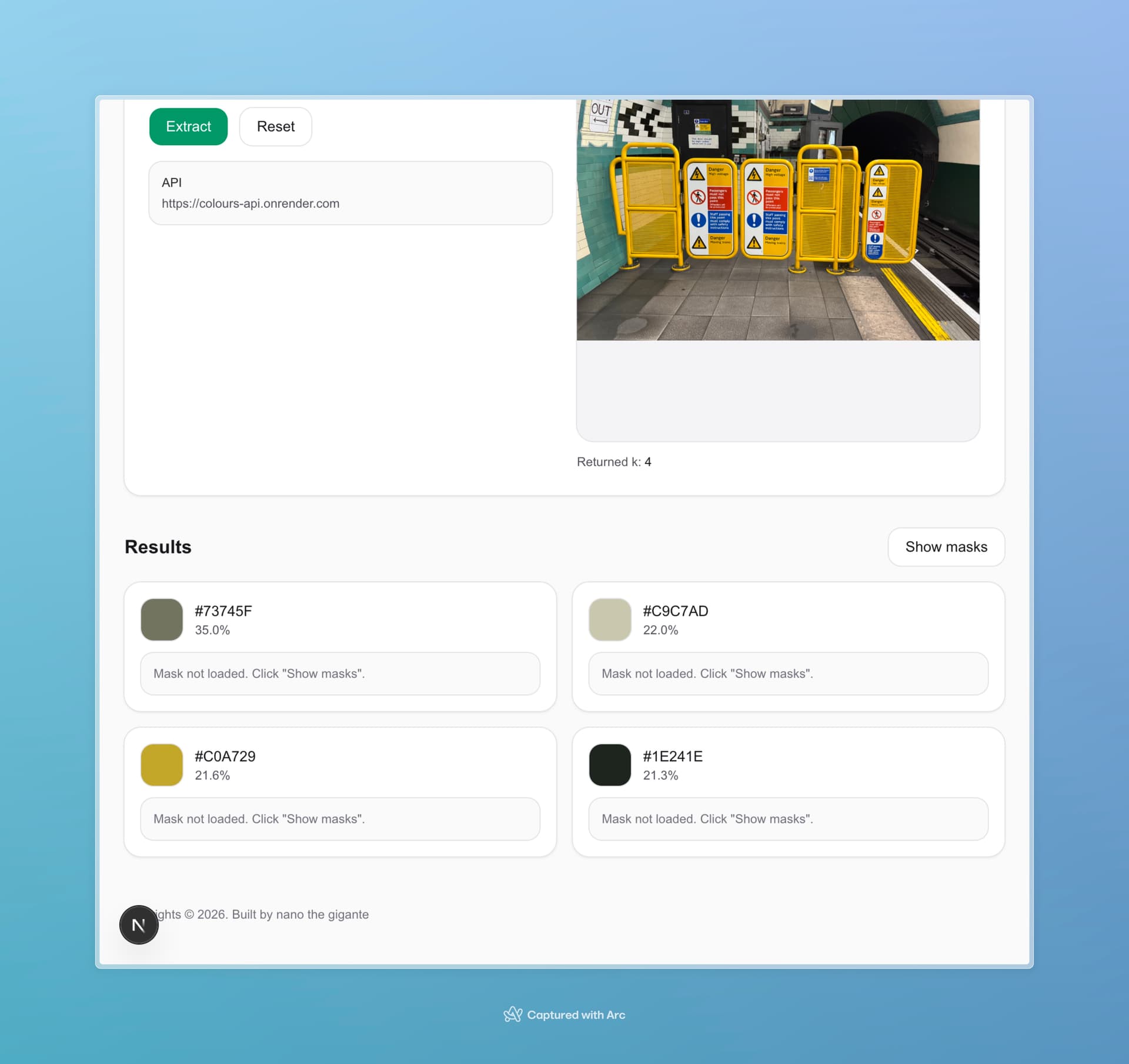
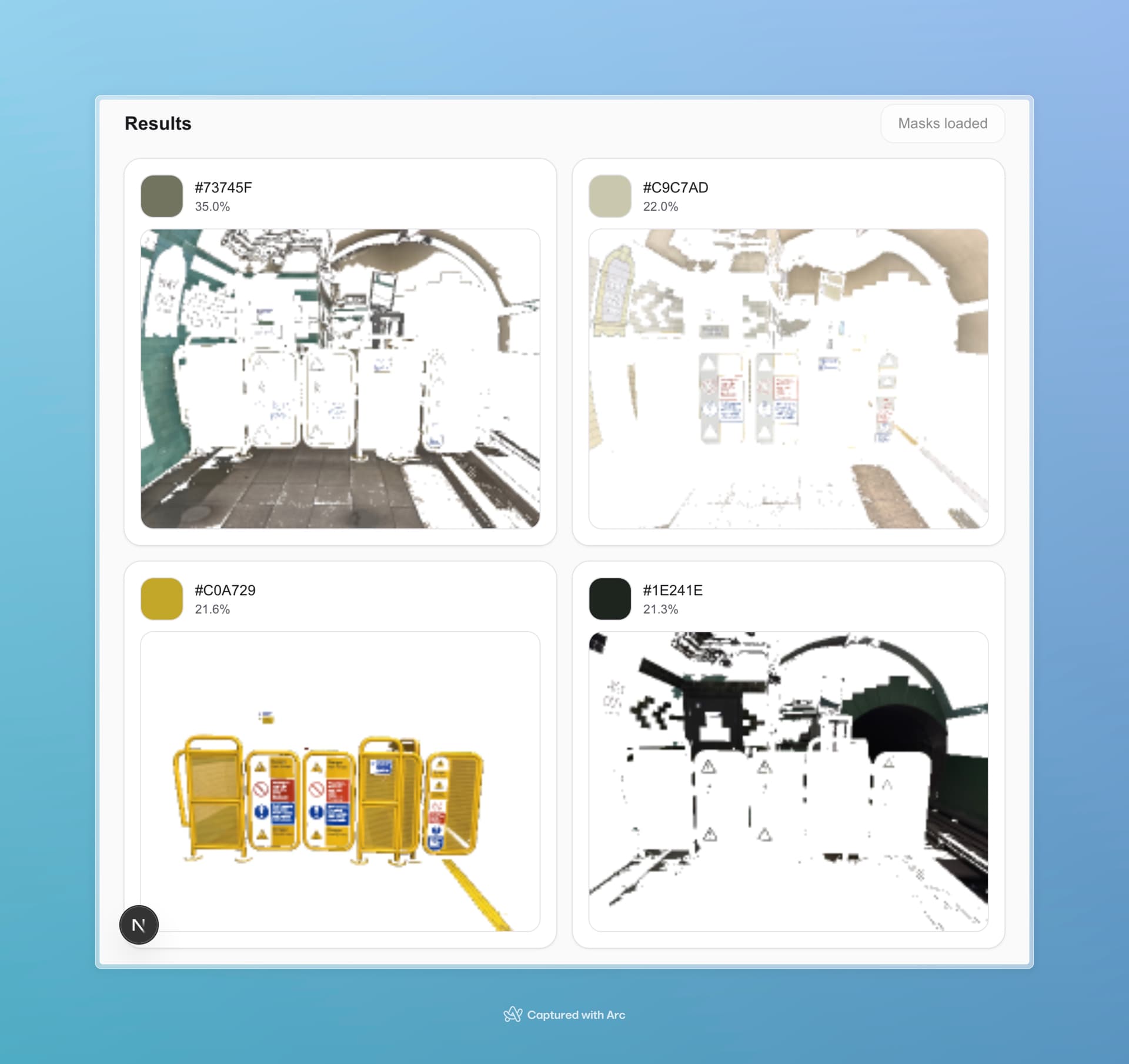
Note: Sometimes it takes a few minutes to process large images.